Logitech MX Master 4 Wireless Mouse Review
Logitech MX Master 4 Wireless Mouse Review and comparison to 3S and 3
The Logitech MX Master 4 is the latest in the Logitech MX series, the previous two being the MX 3S and MX 3. We may make money from these links.
TLDR: Get the 4 if you need haptic features or you’re in need of a new mouse. Otherwise keep the 3S. If you’re using the 3, upgrade now.
The base specs of the MX4 and 3S can be seen in the table below. We won’t include the 3 because it just doesn’t cut it at this point. As you can see in this table, the 4 and the 3S are essentially the same, spec wise!
| Spec | MX Master 4 | MX Master 3S |
|---|---|---|
| Max DPI | 8,000 | 8,000 |
| Sensor | Any-surface tracking (includes glass) | Any-surface tracking (includes glass) |
| Scroll Wheel | Ultra-fast MagSpeed | Ultra-fast MagSpeed |
| Click Noise | Quiet clicks (90% less noise) | Quiet clicks (90% less noise) |
| Haptic Feedback | Yes (Haptic Sense Panel) | No |
| Connectivity | Bluetooth + USB-C wireless | Bluetooth + USB-C wireless |
| Multi-Device Support | Up to 3 devices | Up to 3 devices |
| Battery Life | Up to ~70 days | Up to ~70 days |
| Quick Charge | Yes (1 min ≈ 3 hrs use) | Yes (1 min ≈ 3 hrs use) |
| Buttons | Multiple customizable buttons + haptic inputs | Multiple customizable buttons |
| Ergonomics | Right-hand ergonomic | Right-hand ergonomic |
| Tracking Surface | Works on glass (4 mm min) | Works on glass (4 mm min) |
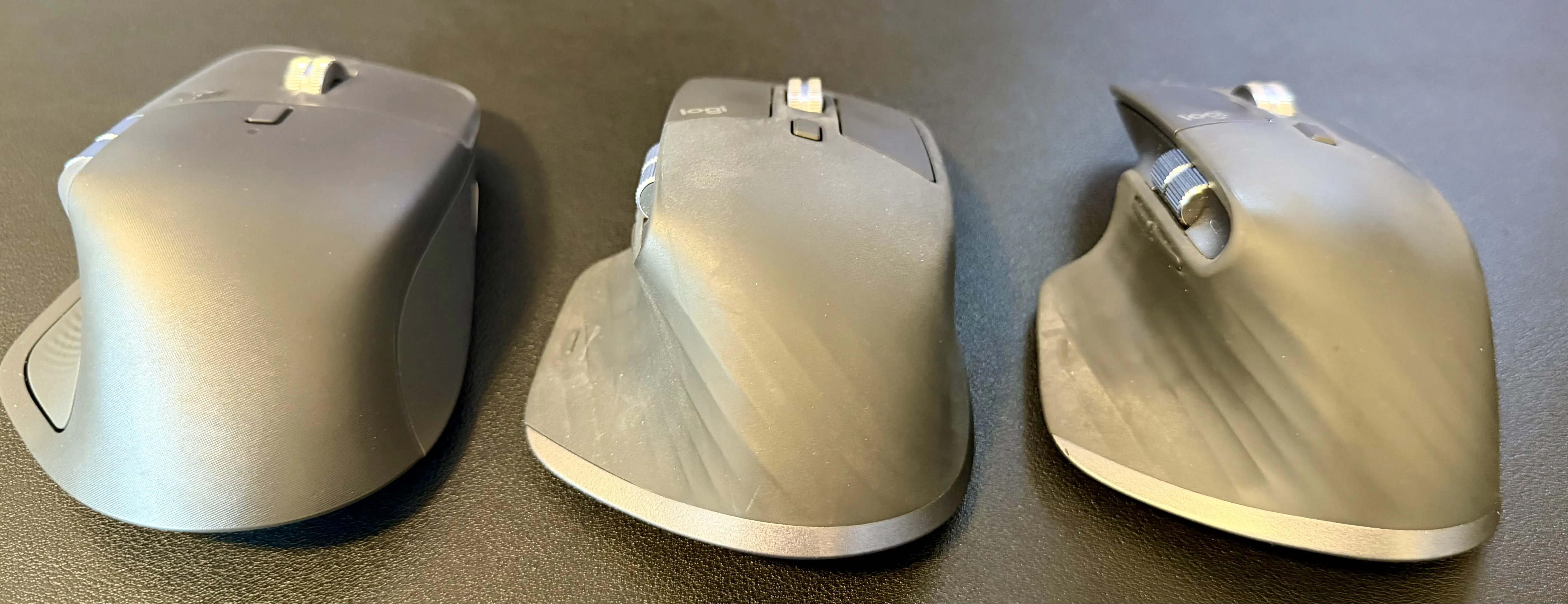
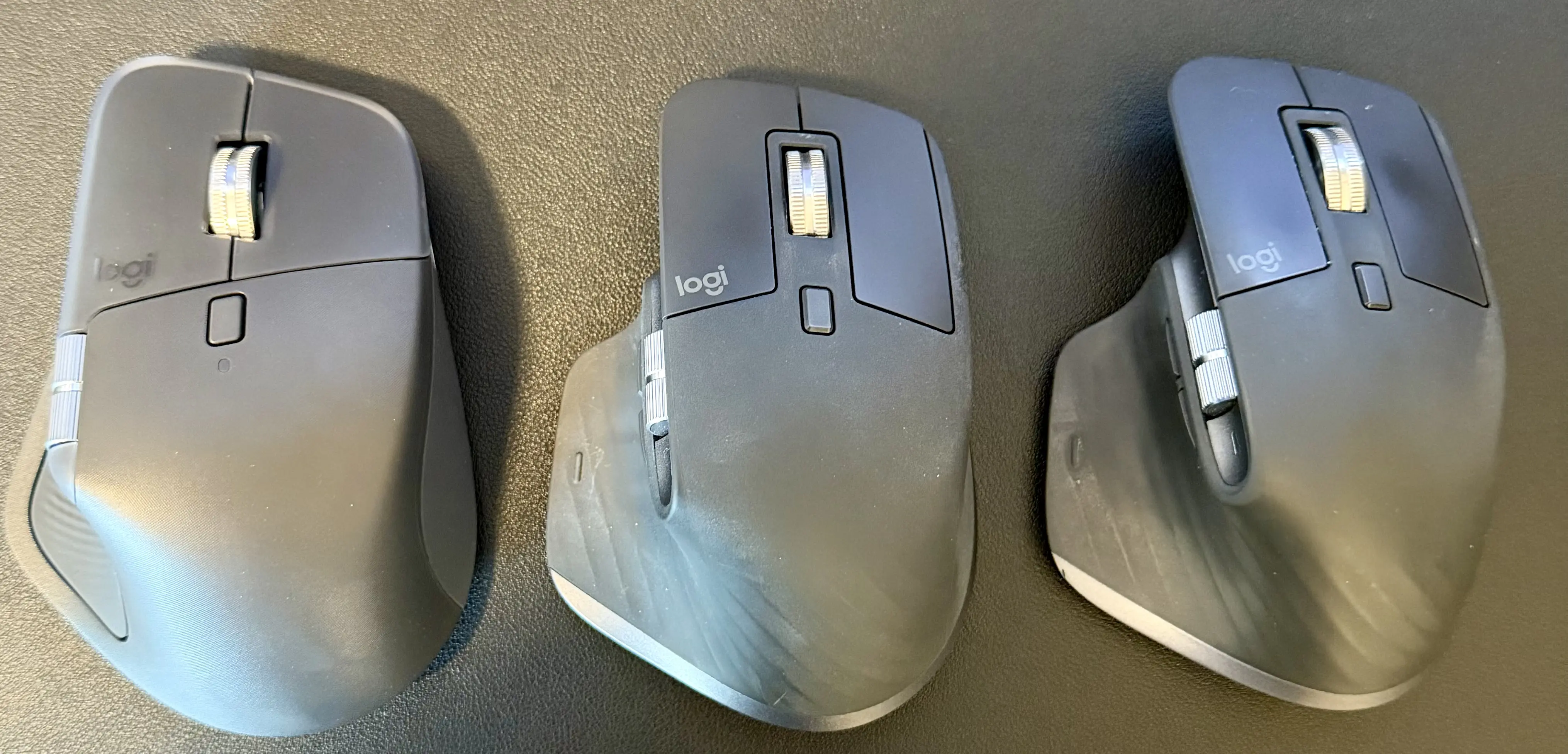
As for size, see the pictures in the next section, but the 4 is slightly larger and heavier. However, I don’t even notice day to day.
Visual Comparison
Here are a couple comparison pics with 4, 3S, and 3 from left to right. These are mice I’ve used regularly for a long time, as we can see.
Feel
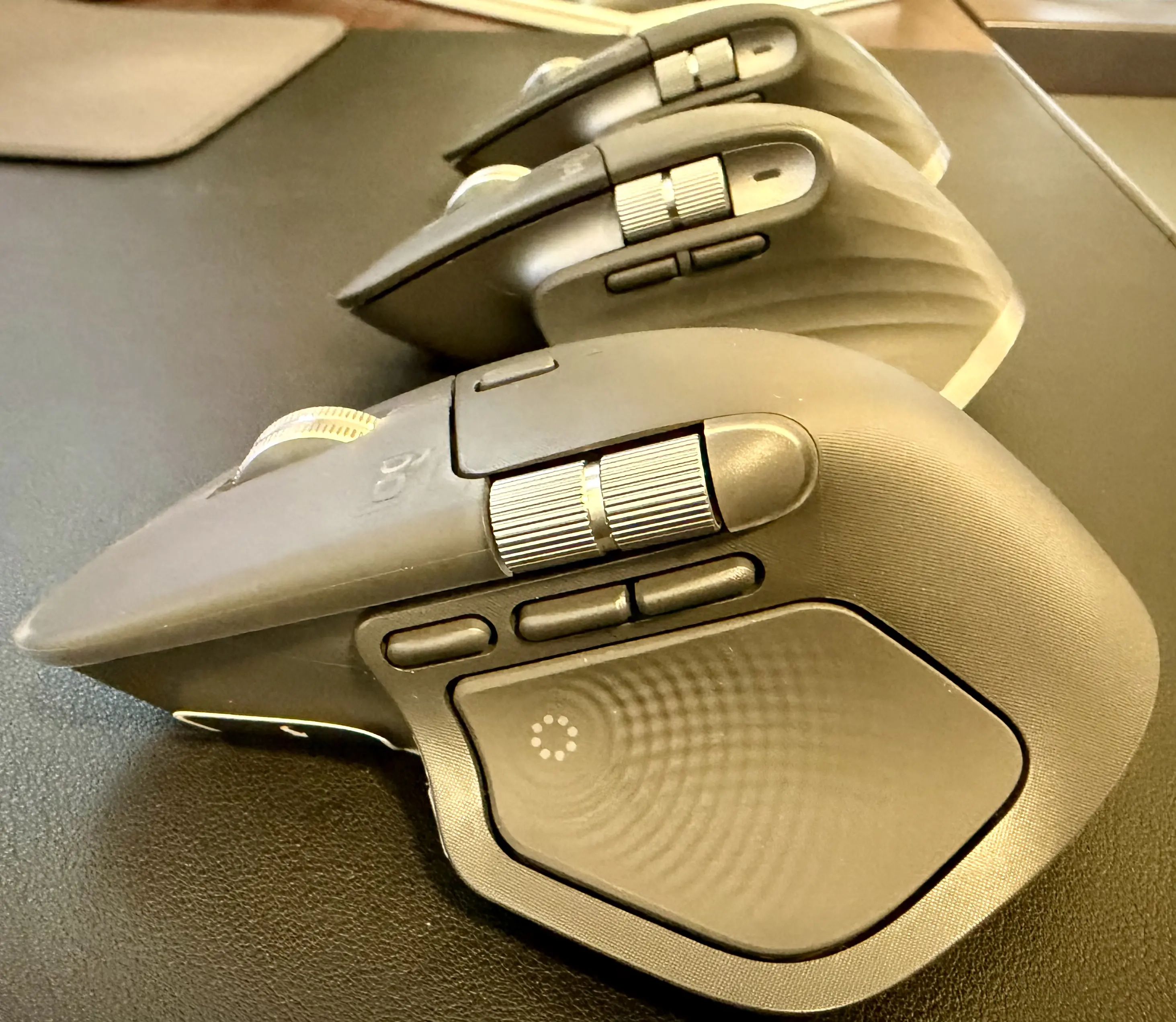
We start to see some differences in the mice when we talk about their feel. They have slightly different construction. Now, if you go looking around on the net, I think you’ll find people divided on if they prefer the 4 to the 3S. First off, they are both an upgrade over the 3. Do not get the 3. Personally, I find the 4’s movement and clicking to be subtly different, and I like it. It seems more “put together”.
You can see the difference in texture below.
Logitech Options+
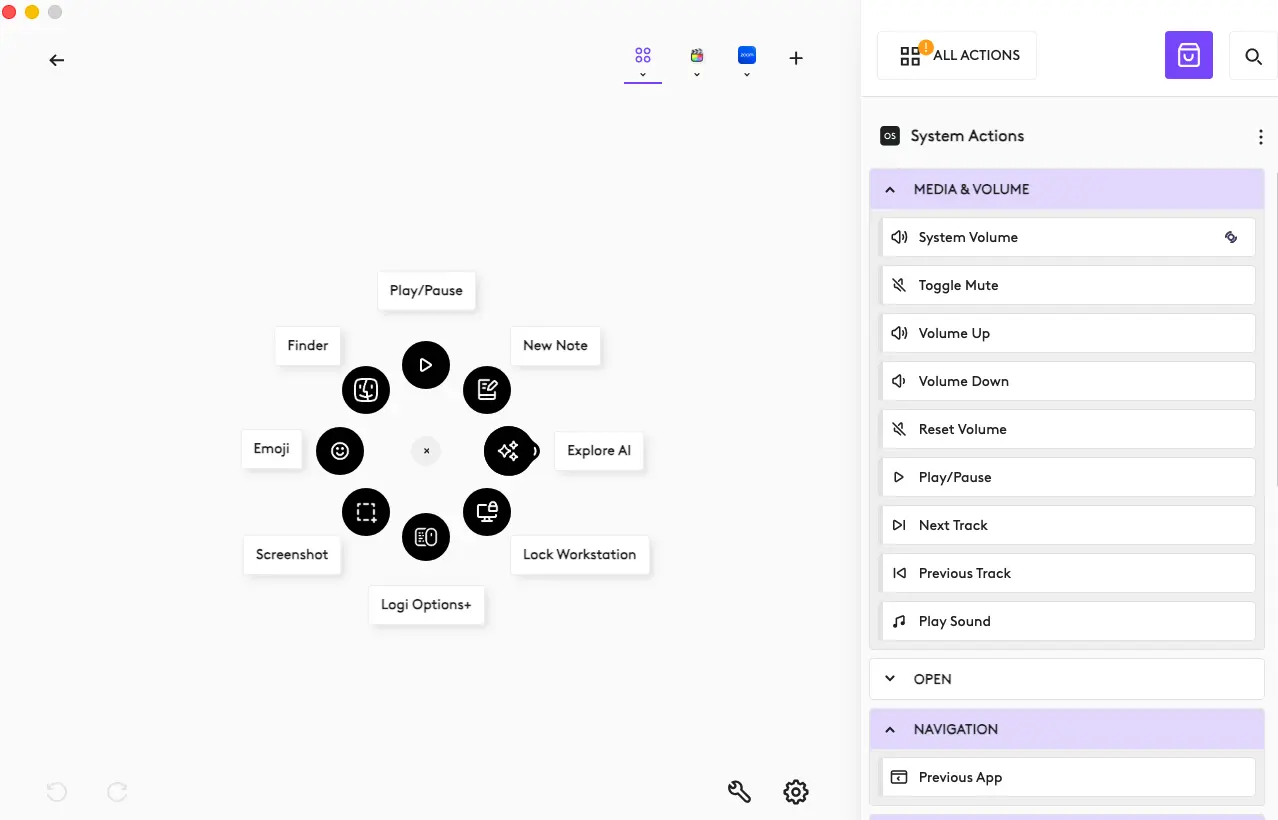
Let’s not forget Logitech Options+. I’ve long been a “no extra software stalwart”. I’ve recently changed my tune. This software lets you streamline a lot of stuff. As someone that does “a lot of stuff” this comes in handy. Stuff like taking screenshots can be done quickly. Or opening apps, etc. Try it out if you haven’t already.
Which to Get
If you already own the MX Master 3S, there’s no urgent need to upgrade — it’s a fantastic productivity mouse with excellent ergonomics, a high-precision sensor, and support for multi-device workflows.
That said, if you’re in the market for a new mouse, the Logitech MX Master 4 is currently the latest in the series and is worth considering. Compared to the MX 3S, the MX 4 brings changed ergonomics, a larger battery (likely the same life), and an updated input surface that enables more customizable actions. These aren’t earth-shattering changes, but they are meaningful refinements if you like having the newest hardware and a little extra performance headroom. If you need the haptic feedback, though, that’s a big upgrade.
If you’re on a tighter budget or just want great value, the MX Master 3 is still a solid choice and performs very well for most workflows.
Summary:
- Keep the MX 3S if you already have it — it’s still excellent.
- Go for the MX Master 4 if you want the latest version with subtle spec and feature improvements such as haptic feedback.
- Consider the MX Master 3 Outdated. Don’t consider.